In vector graphics, everything is built from paths. A path consists of a series of curves. To control the shape of these curves, we use anchor points and handles. By manipulating these elements, you can create almost any shape imaginable.
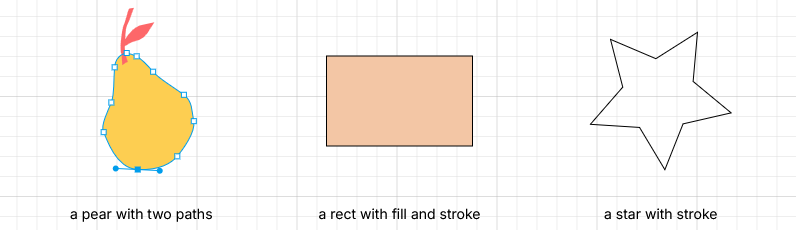
Beyond the curves themselves, every path has two key visual properties: stroke and fill. The stroke is the outline of the path, and you can customize its width, color, and style. If a path’s start and end points connect, it forms a closed shape, which can then be filled with any color you choose. Together, strokes and fills allow you to create the visual building blocks of any image.
A vector graphics editor provides a comprehensive set of tools to edit these anchor points and handles, giving you the freedom to draw anything you can imagine with ease.
You can find various tools in the top toolbar. Simply click on a tool icon to select and activate it. These tools are categorized into logical groups. When you hover over an icon with a small drop-down arrow, a menu will appear listing all the tools in that specific category.

Move your mouse to the drop-down menu and click on a tool to select it. Additionally, if you hover over any tool in the menu for a moment, a pop-up window will appear showing a short video tutorial. This will help you quickly understand how each tool works.
The Selection tool (Move/Select) allows you to select and move entire paths. You can also use it to transform paths by scaling or rotating them.
The editing tools give you precise control over anchor points and handles. You can move existing anchors, add or delete anchors, change anchor types, and adjust handles to alter the curvature of the path.
To create a path, you can use predefined shape tools such as Rectangle, Ellipse, Polygon, Star, and more. Alternatively, you can draw paths from scratch using the Pen tool. With the Pen tool, simply click anywhere on the canvas to add a straight anchor point, or click and drag to create a curved anchor point with handles.
Introduction video of the pen tool
The editor also includes specialized tools like Mirror and Duplicate to help you perform specific operations with ease. Remember, you can always hover over any tool’s menu entry to watch its video tutorial and learn how it works.
Feel free to experiment on the canvas and enjoy creating!

 svgia.com